
Solutions / Group polls
Find a time
for the whole group.
Propose a few times. Everyone ticks the ones that work. You confirm one, and it lands on your calendar.
Start free. No credit card required.
Already have an account? Sign in
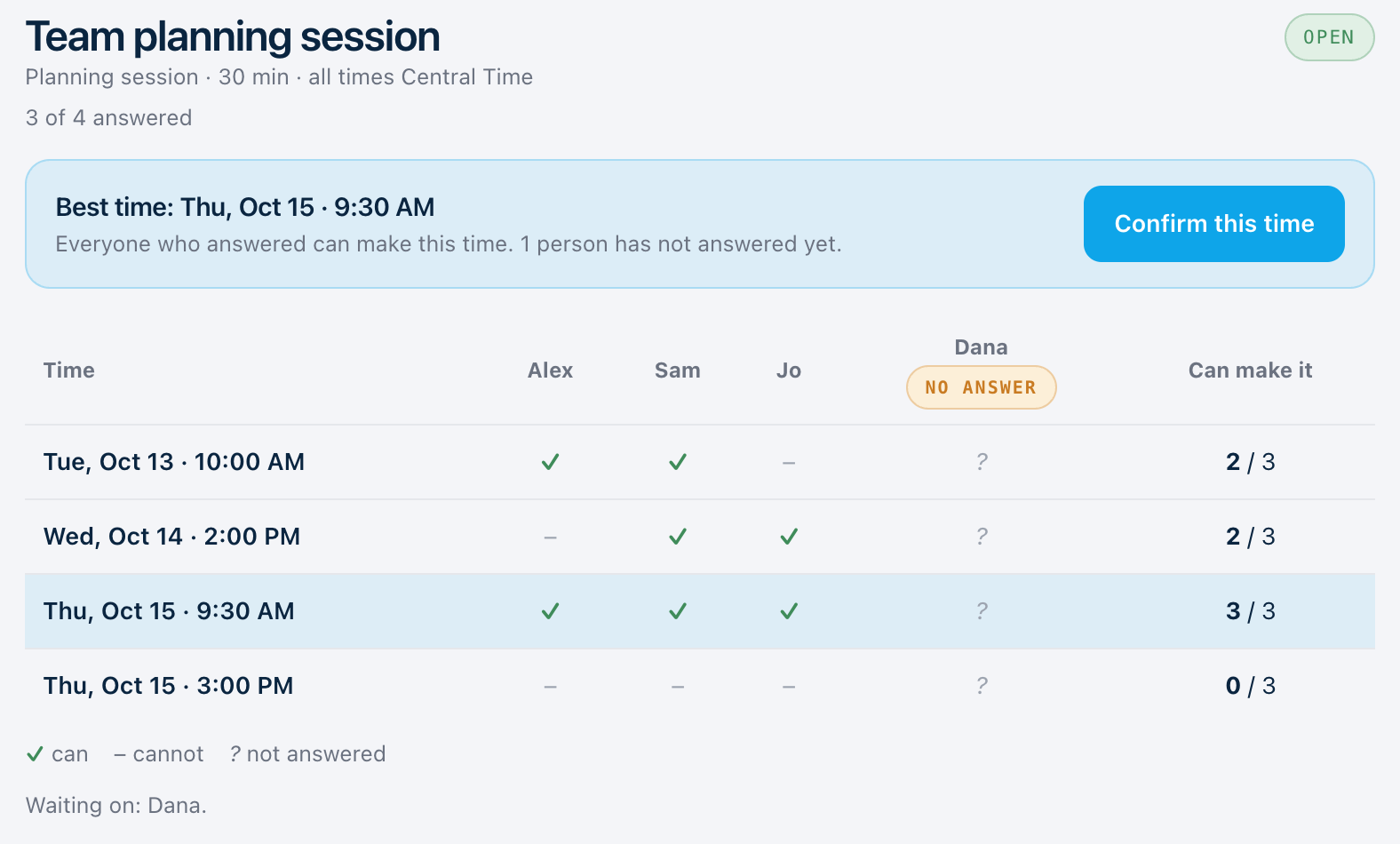
The organizer's view. Sample group and times.
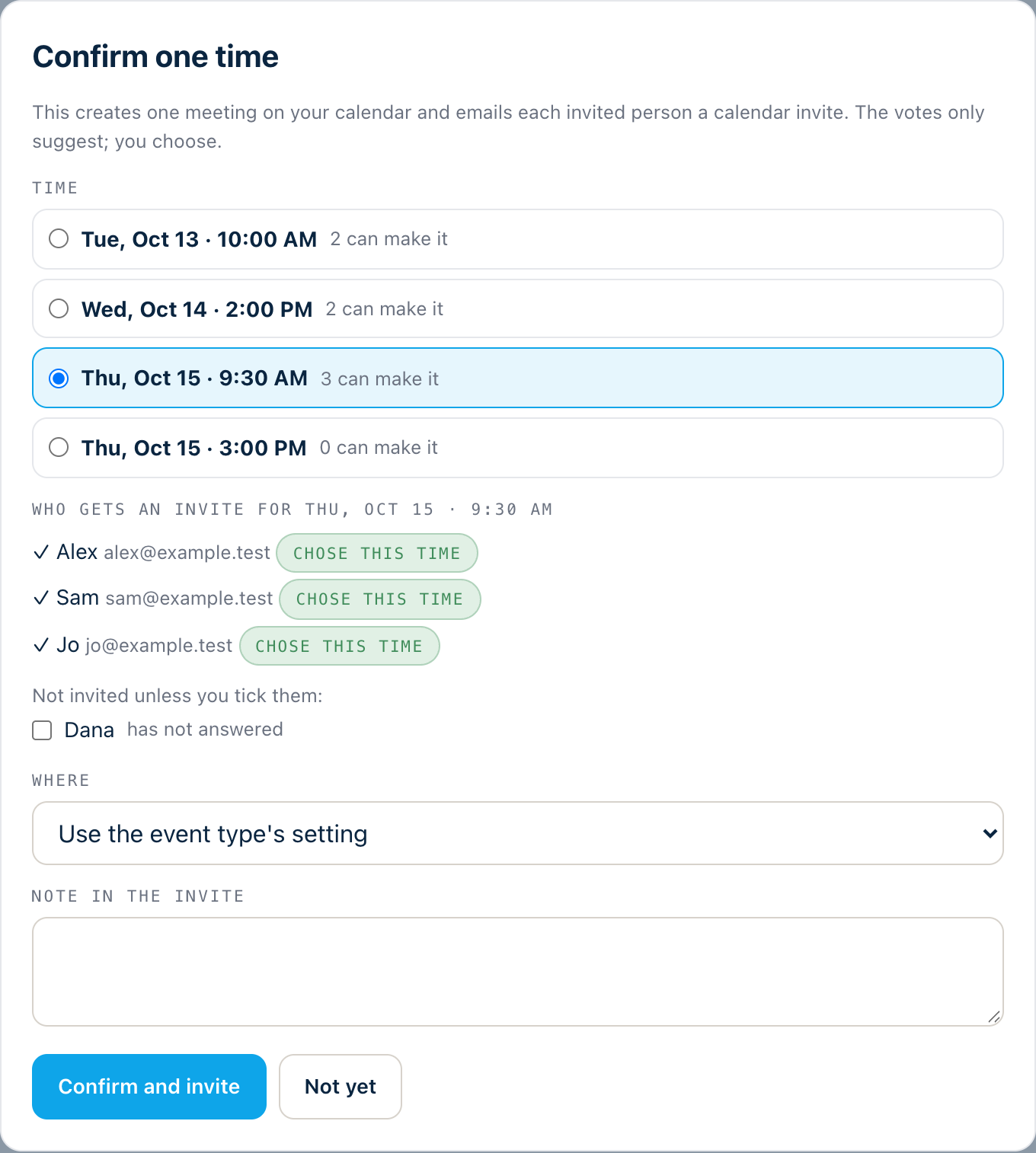
Offer a few times, and send a link.
Choose the times you could meet. Invite people by email and each person gets their own link, or share one link with a group.
- People answer from a link, with no account needed
- Proposed times are not reserved: they stay available for other bookings until you confirm one
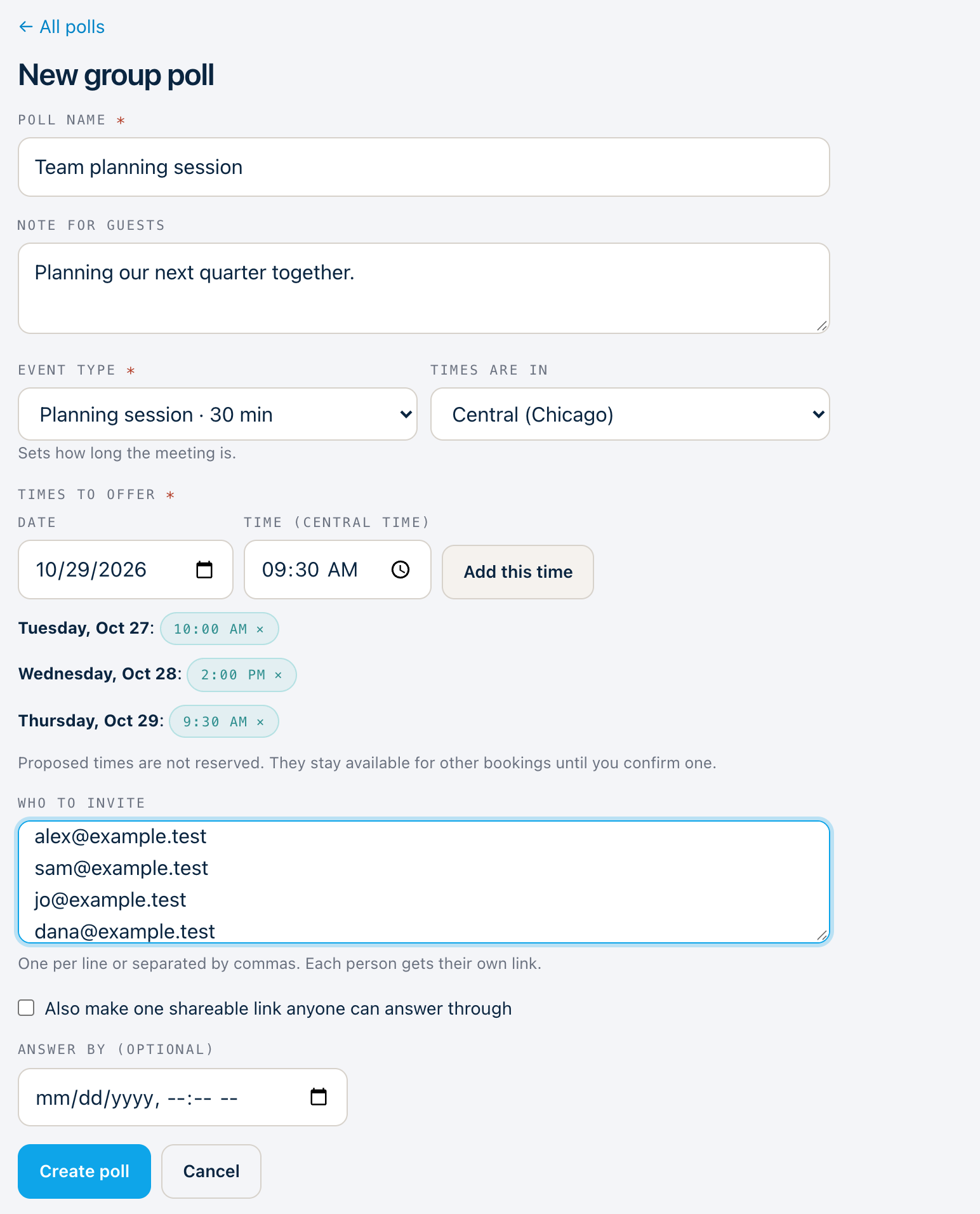
Tick the times that work.
Each person marks the times that suit them, or says that none of them do.
- Answers come back in one place
- Set an answer-by time if you want one
See the best time at a glance.
The grid shows who can make each time, and the page suggests the time the most people can make.
- See who has not answered yet
- Nothing is booked until you confirm a time
One click, and it is on the calendar.
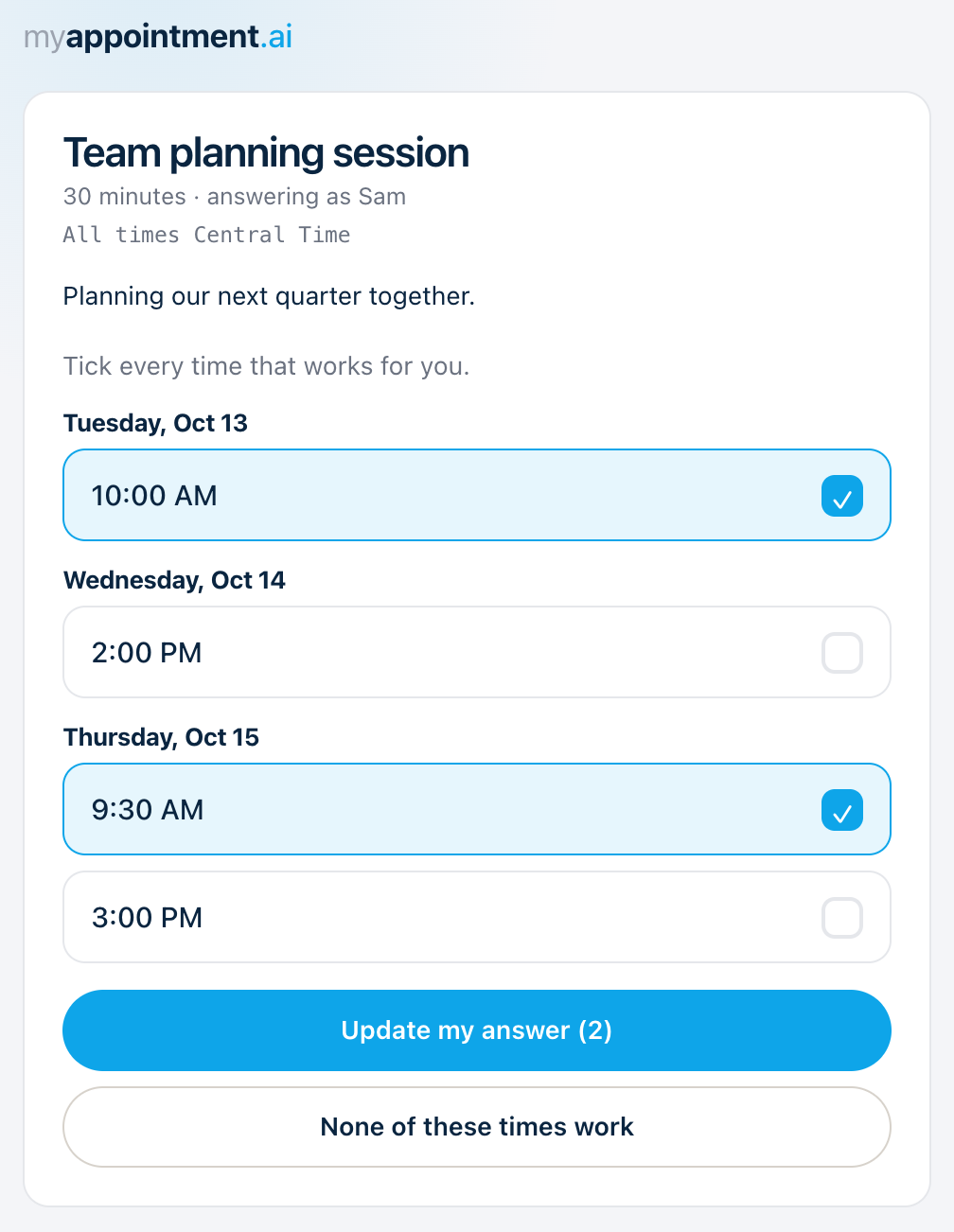
When you confirm a time, the meeting is created on your calendar and each invited person gets a calendar invite. The answers only suggest; you choose.
- Availability is checked again before the meeting is created
- People who chose that time are invited, and you can add others
Find a time with another MyAppointment user.
Look someone up by their handle and see times that work for both of you, based on your connected calendar.
This works for MyAppointment users.
Three steps. That’s it.
Propose times.
Choose the times you could meet and send the link.
Collect answers.
Everyone ticks the times that work for them.
Confirm one.
The meeting is created and the invitations go out.