
Solutions / Teams
One page.
Your whole team.
Give clients a single place to book with your team. They see only the times when everyone is free, based on each person's connected calendar.
Start free. No credit card required.
Already have an account? Sign in
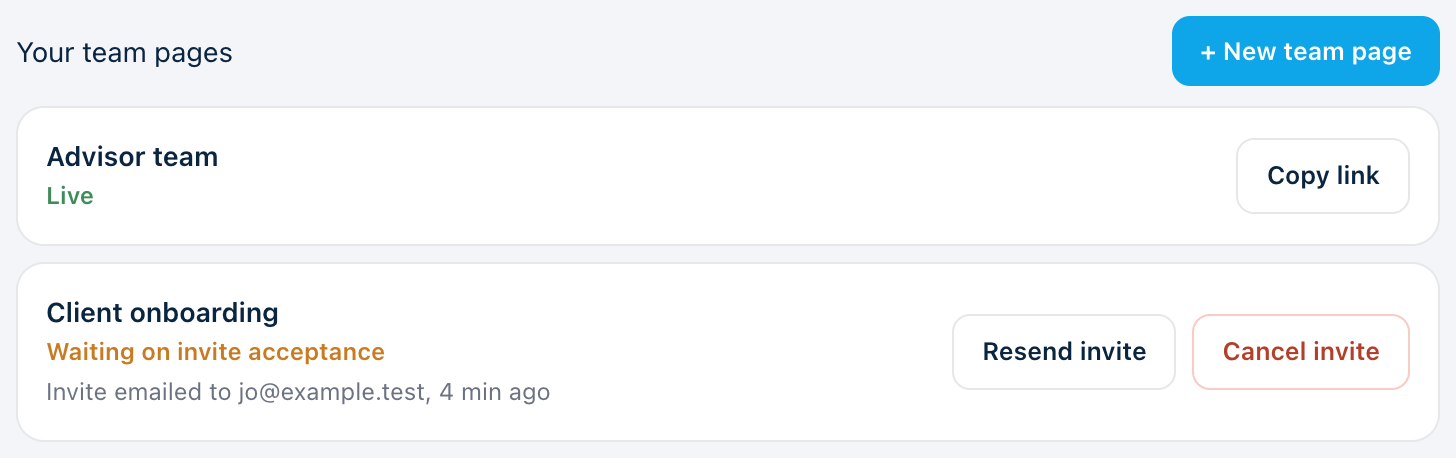
A booker sees only times when everyone is free.
Times are based on each person's connected calendar. The page checks each invited person's connected calendar. The meeting lands on every calendar.
- One link to share for the whole team
- Each person keeps their own calendar
Guests book a time when everyone is free. A team page does not assign one available host.
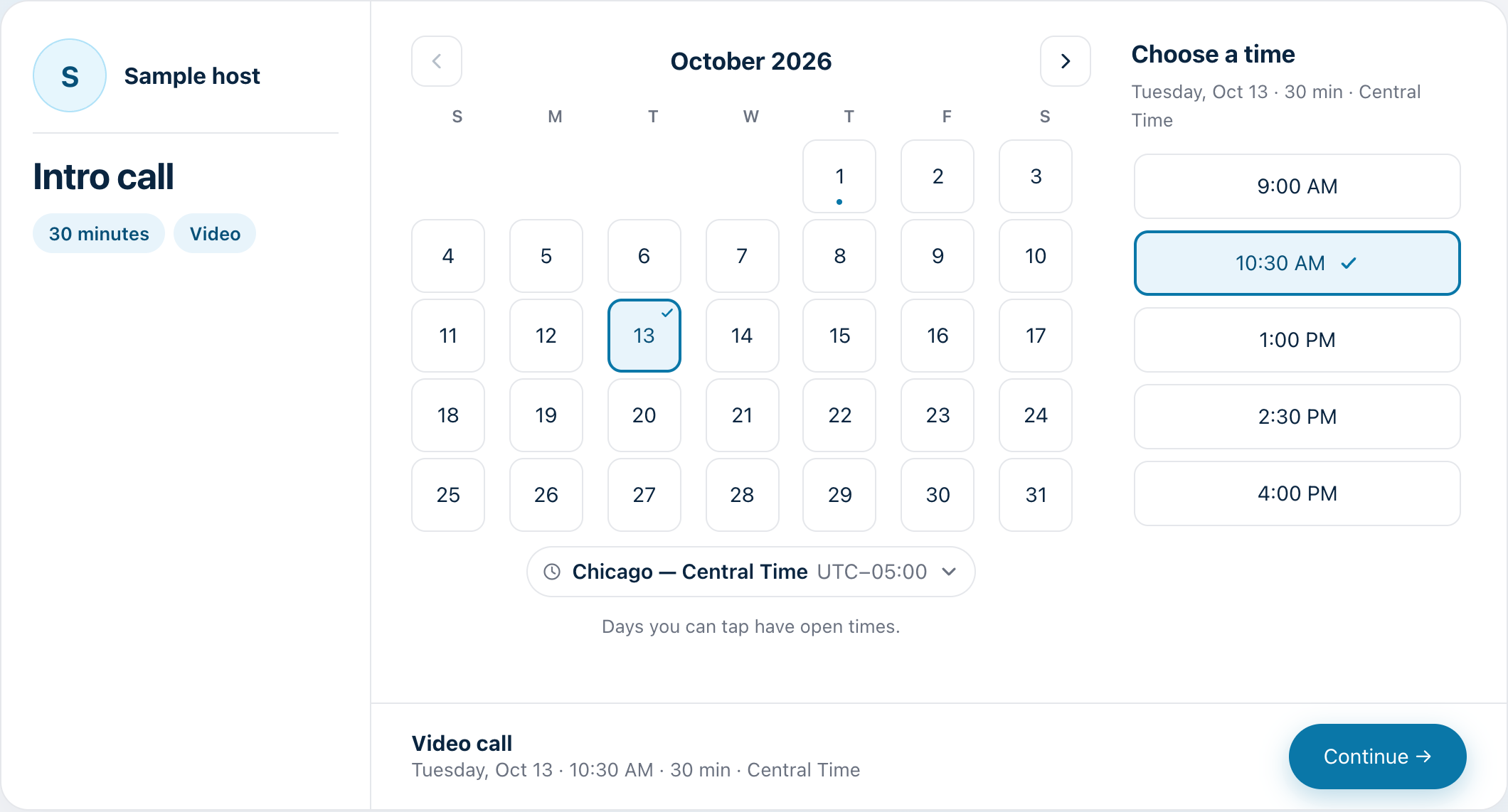
Bring everyone in by email.
Create the page, and each co-host gets an emailed invite. Resend or cancel from the same screen. Nothing goes live until they accept.
- Resend and cancel in a click
- Each person accepts for themselves
Each team gets its own page.
Create booking pages and shared team pages for each team. There is no limit on meeting types or bookings.
- Unlimited meeting types and bookings
- Each person keeps their own calendar, Google Calendar or Microsoft Outlook
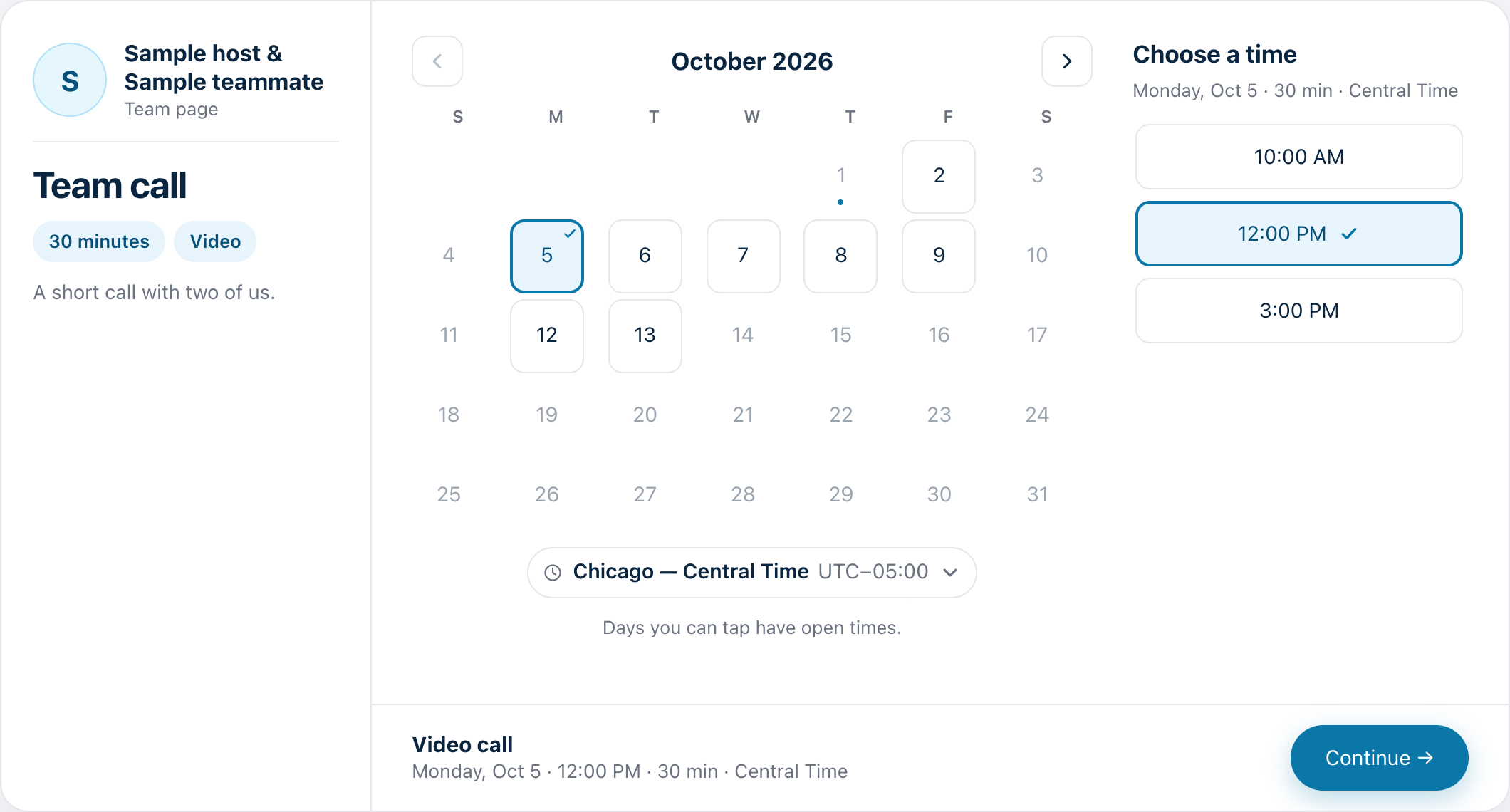
Find a time as a group.
When the team needs to agree internally, run a scheduling poll instead of a thread of replies.
- Everyone answers in one place
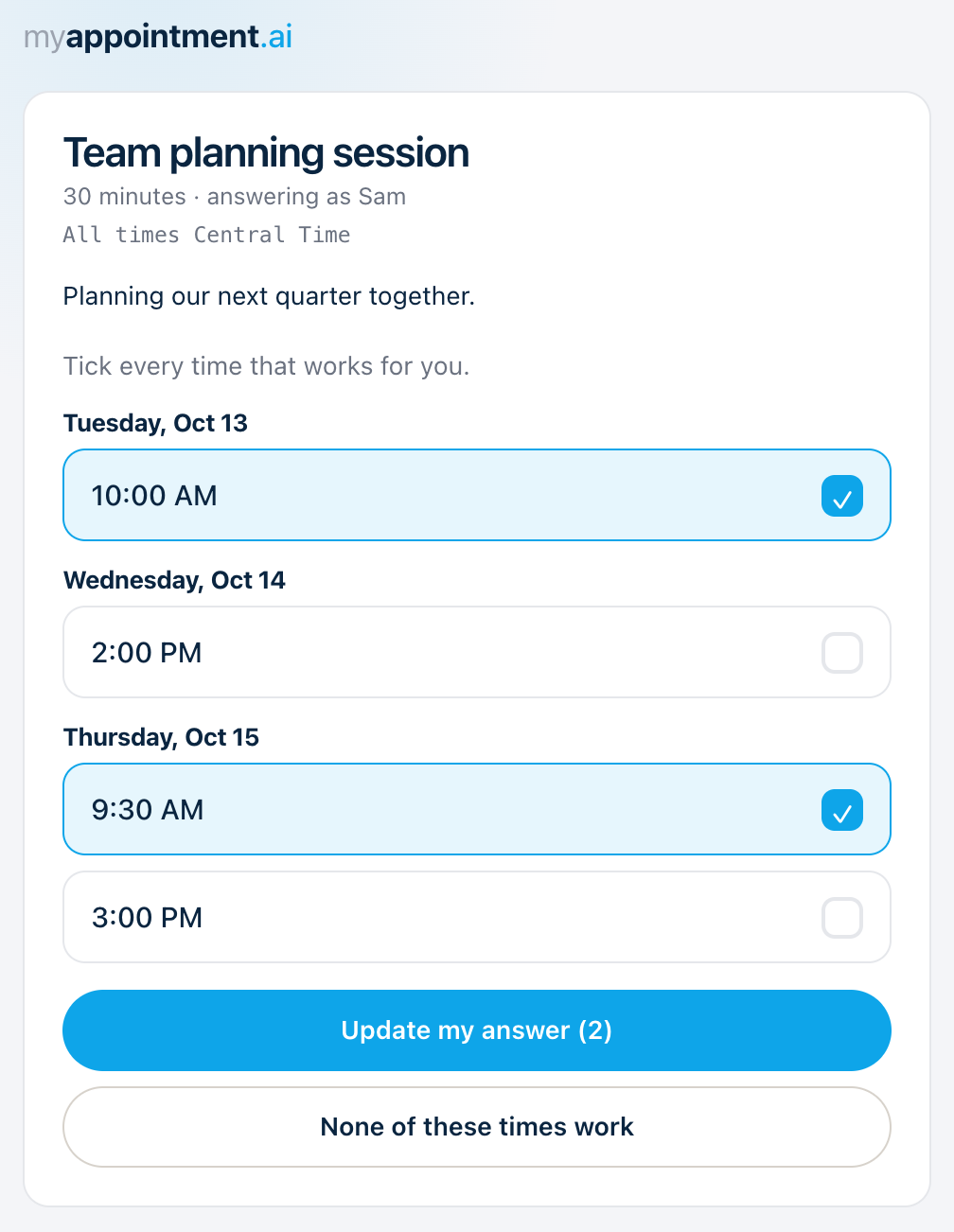
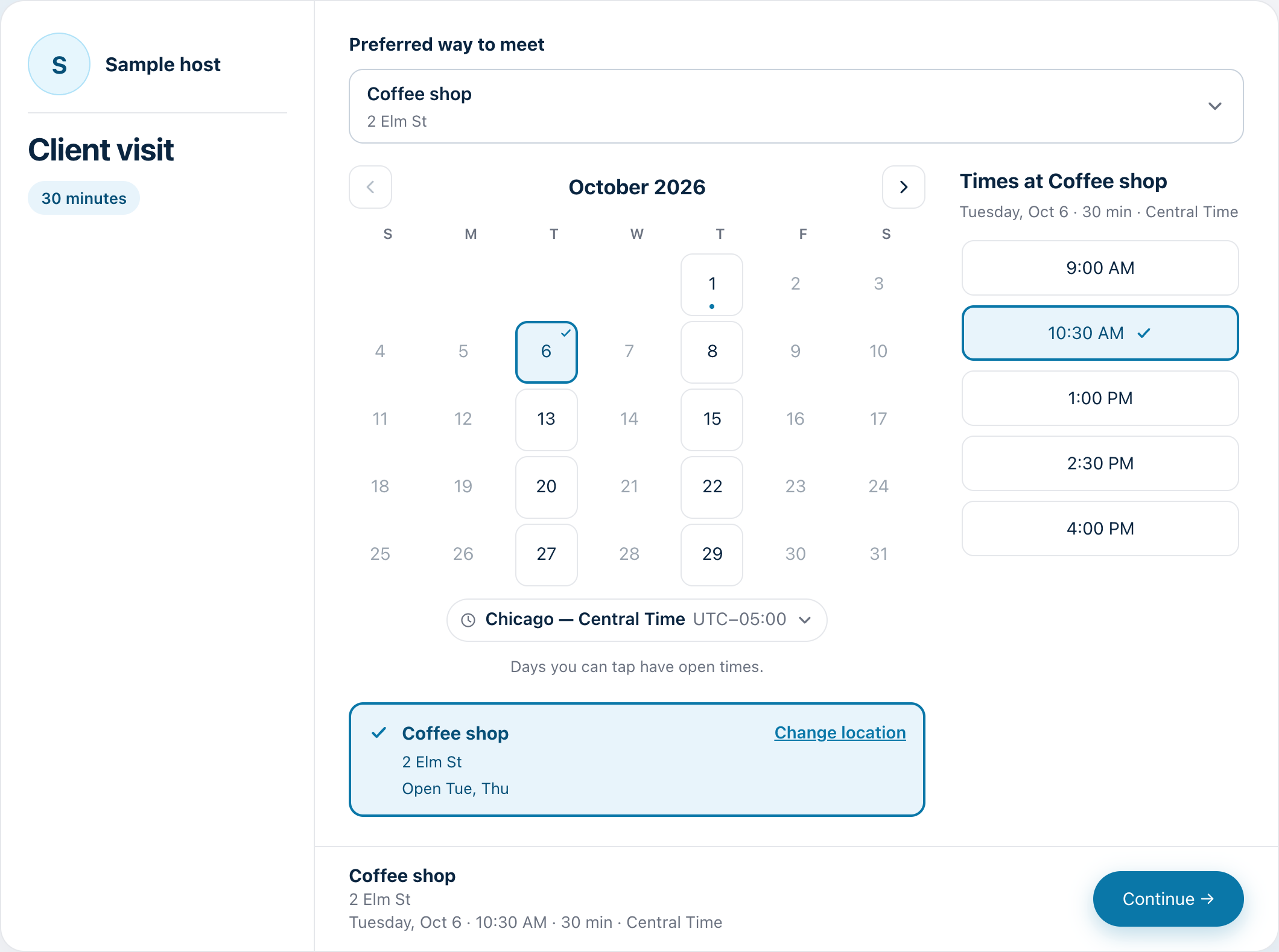
Different places, different days.
Set which days each location is open, so the right place is offered on the right day.
Three steps. That’s it.
Create the page.
Name it, choose the length and where you meet.
Invite your team.
Co-hosts get an email and accept for themselves.
Share one link.
Clients book, and it lands on every calendar.