Choose how links are made.
A Google Meet link is added to the calendar event of a Google calendar you have connected. If you prefer Zoom in Settings and your Zoom account is connected, a Zoom meeting is created instead.

Features / Video meetings
Connect Google or Zoom. When a video meeting has no link of its own, MyAppointment can add one, depending on how you booked it and which accounts you connected.
Start free. No credit card required.
Already have an account? Sign in
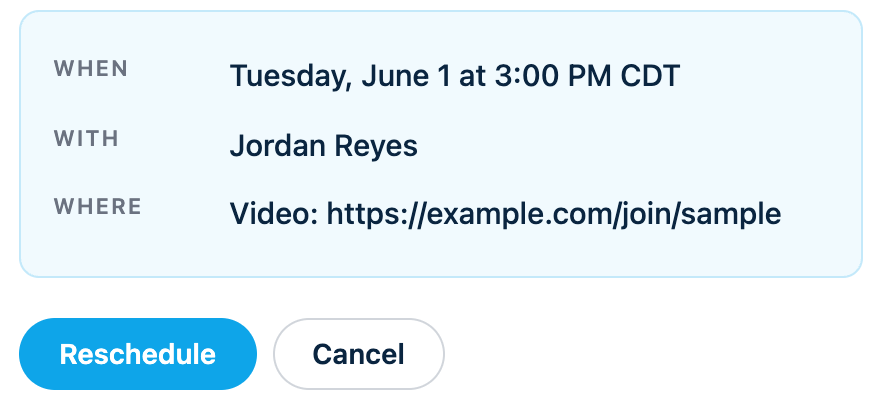
A booking confirmation email for a video meeting, with sample details.
A Google Meet link is added to the calendar event of a Google calendar you have connected. If you prefer Zoom in Settings and your Zoom account is connected, a Zoom meeting is created instead.
Connect your Google account for Meet, or connect Zoom under Video conferencing. You can reconnect or disconnect Zoom any time.
A video meeting that already has your own link keeps it.
Link creation is best effort, and it depends on how the meeting was booked.
Do it once, in Settings.
Choose video on a meeting type.
If a link could be made, it is added.