
Features / Reminders and follow-through messages
Put your reminders
in your own words.
Send reminder emails before a meeting and messages after it, written by you, for each meeting type. In your dashboard this is the Workflows card.
Start free. No credit card required.
Already have an account? Sign in
Before the meeting, the meeting, after the meeting.
Remind people in your own words.
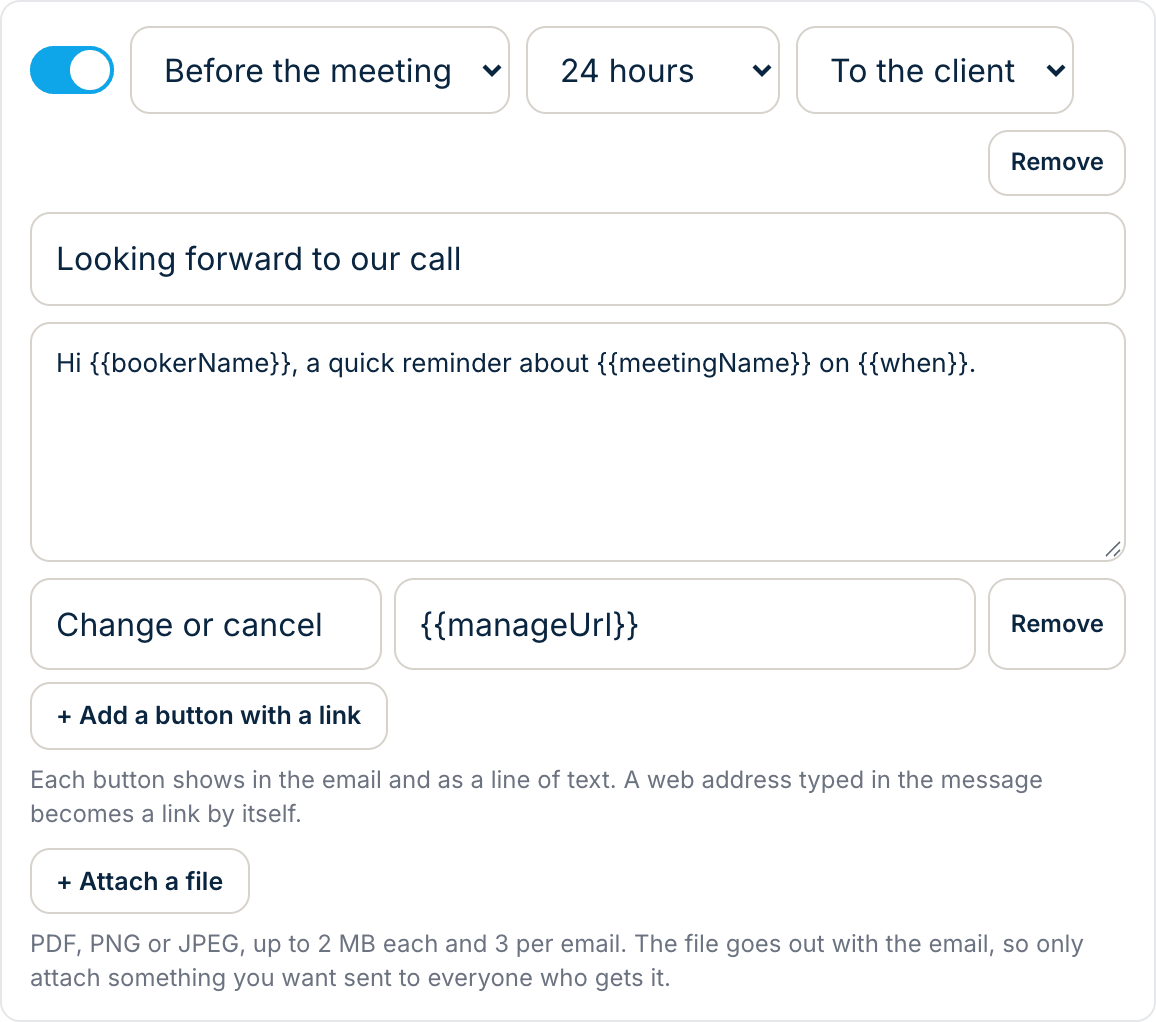
Add an email that goes out before the meeting, to the person who booked or to you. Choose how long before, up to four days, and write the subject and message yourself.
- Send it to the booker or to yourself
- Choose the timing, up to 96 hours before. Messages go out within about 15 minutes of that time
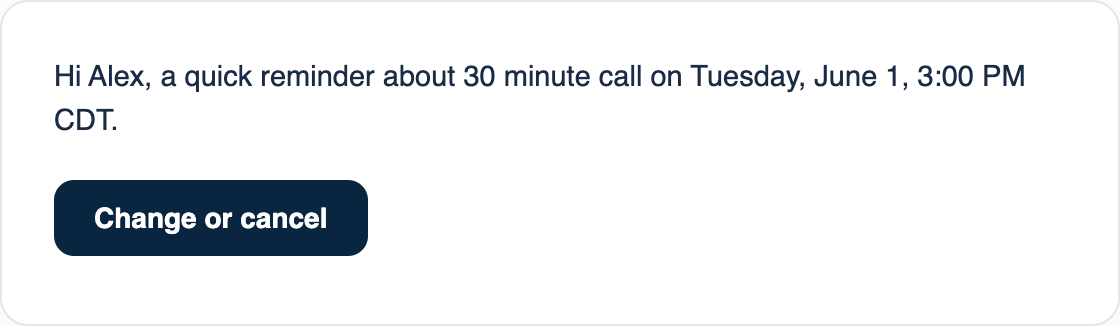
- Add merge fields for the booker’s name, the time, the place and the booker’s change or cancel links
If your meetings are managed in MyLola, before-meeting steps are skipped for those bookings, because they already get MyLola’s standard reminders. Follow-through messages still send. Delivery is not guaranteed.
Send a message when it ends.
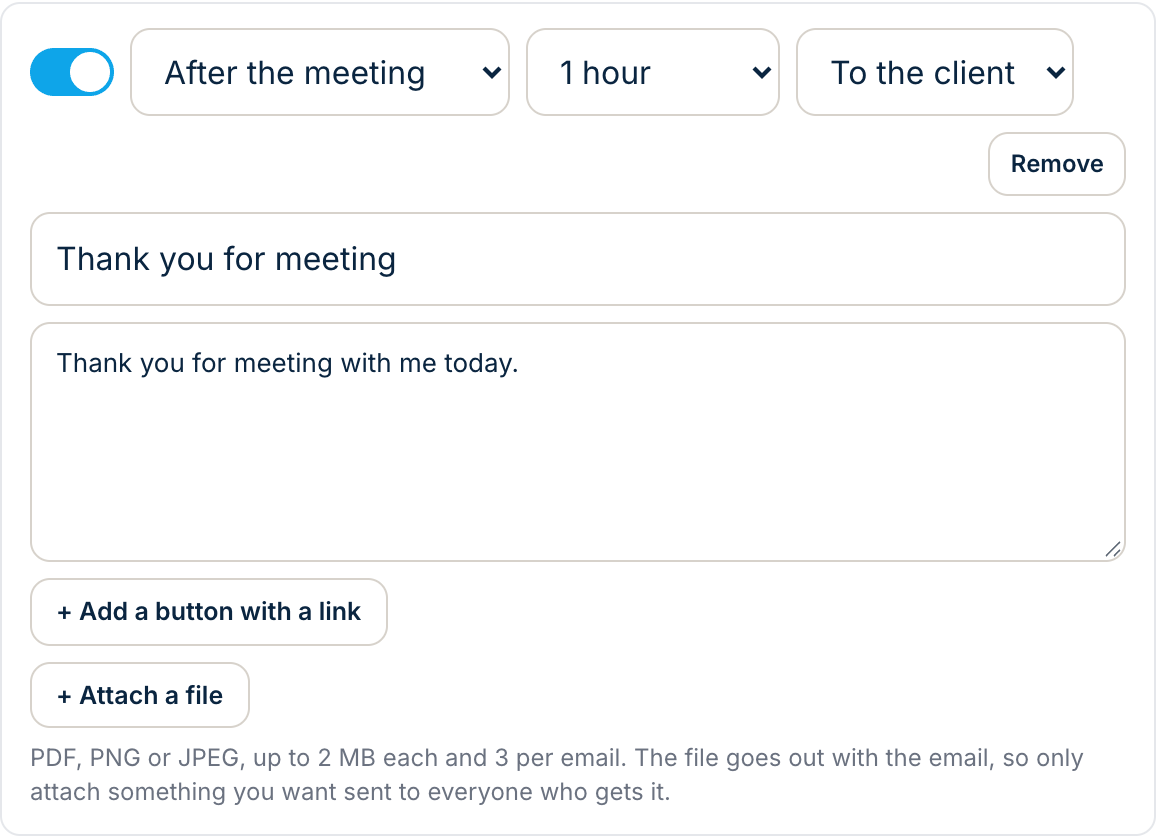
Add an email that goes out after the meeting, such as a thank you, a summary or a next step.
- Same choices as a reminder, timed after the meeting
- A different message for each meeting type
Add buttons and attachments.
Add up to 5 buttons that open a web address, and attach up to 3 files to a step (PDF, PNG or JPG, up to 2 MB each).
Each step sends once per booking. Messages are emails; MyAppointment does not send texts from here.
Three steps. That’s it.
Pick a meeting type.
Open the Workflows card on a meeting type.
Add a message.
Choose before or after the meeting, then write it.
Turn it on.
It sends once for each booking.