
Features / Share times by email
Put your open times
in an email.
Pick the times you want to offer and paste them into an email. Each time is a link that opens your booking page on that time.
Start free. No credit card required.
Already have an account? Sign in
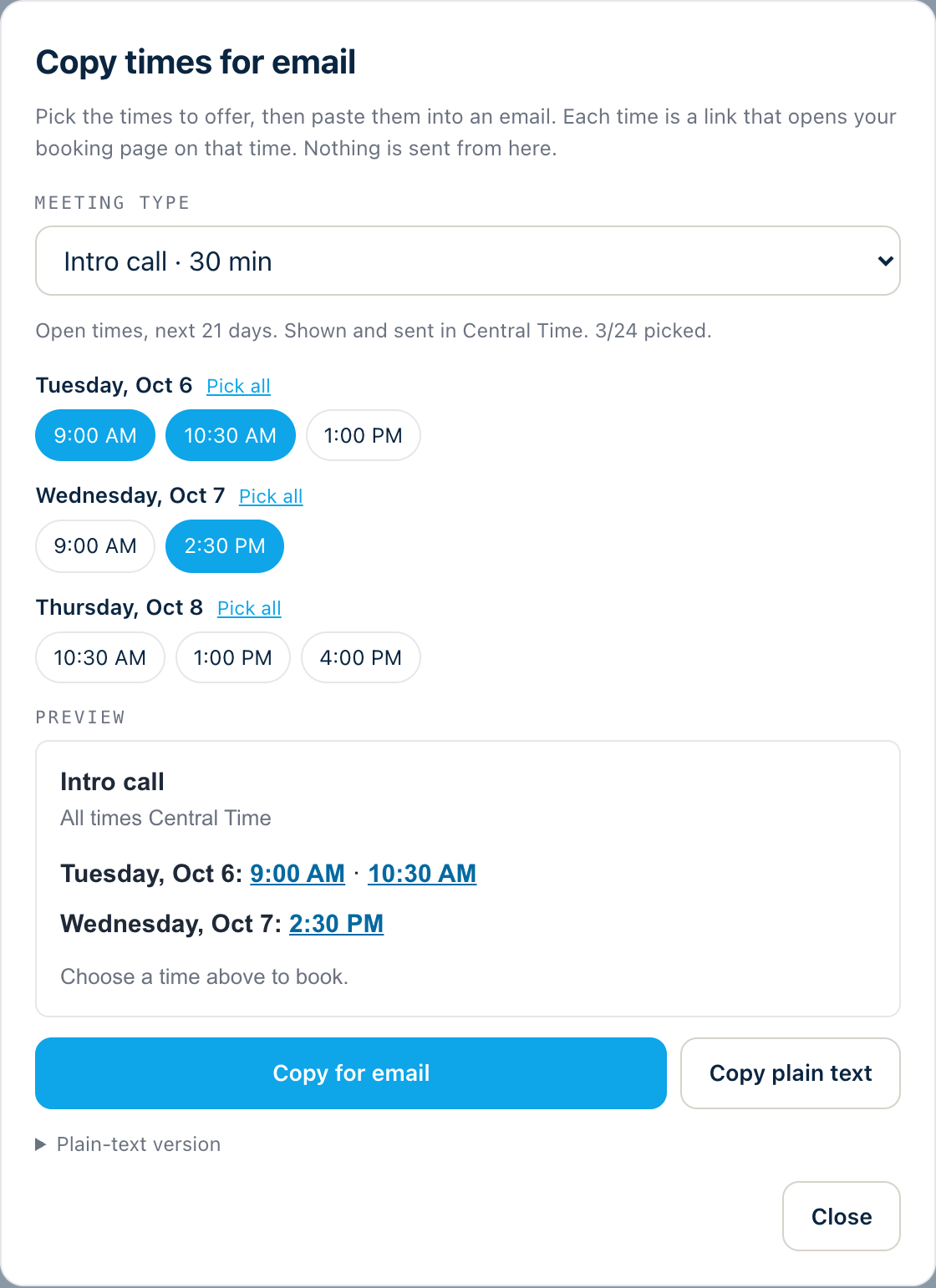
Copy times for email, with sample times.
Choose the times to offer.
Pick a meeting type, then tick the open times you want to offer from the next three weeks. Times are shown in your booking page's time zone.
- Choose from the open times on your calendar
- Preview the block before you copy it
Paste it into any email.
Copy the block for an email, or copy plain text. Then paste it into the email or message you are writing.
- Copy for email, or copy plain text
- Works in the email you already use
MyAppointment does not send anything from here. The email is yours.
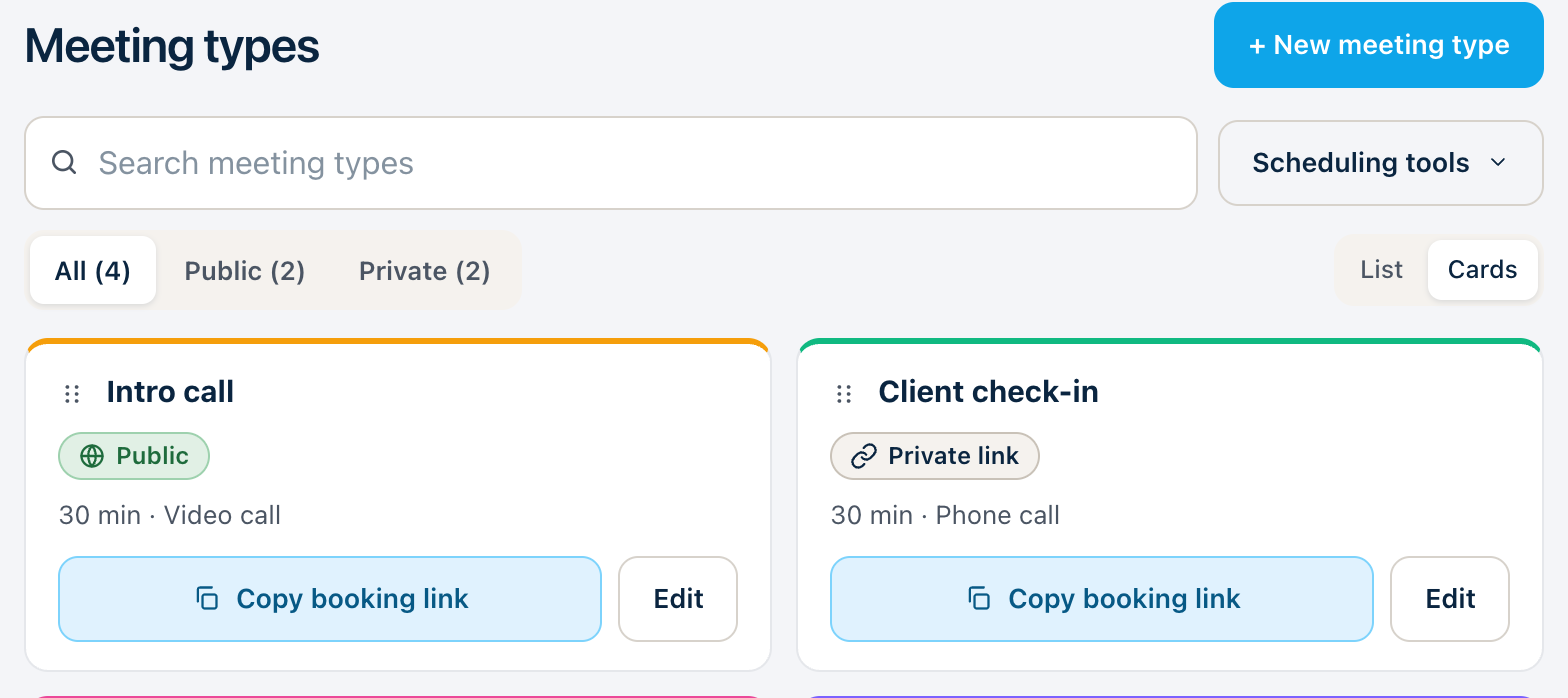
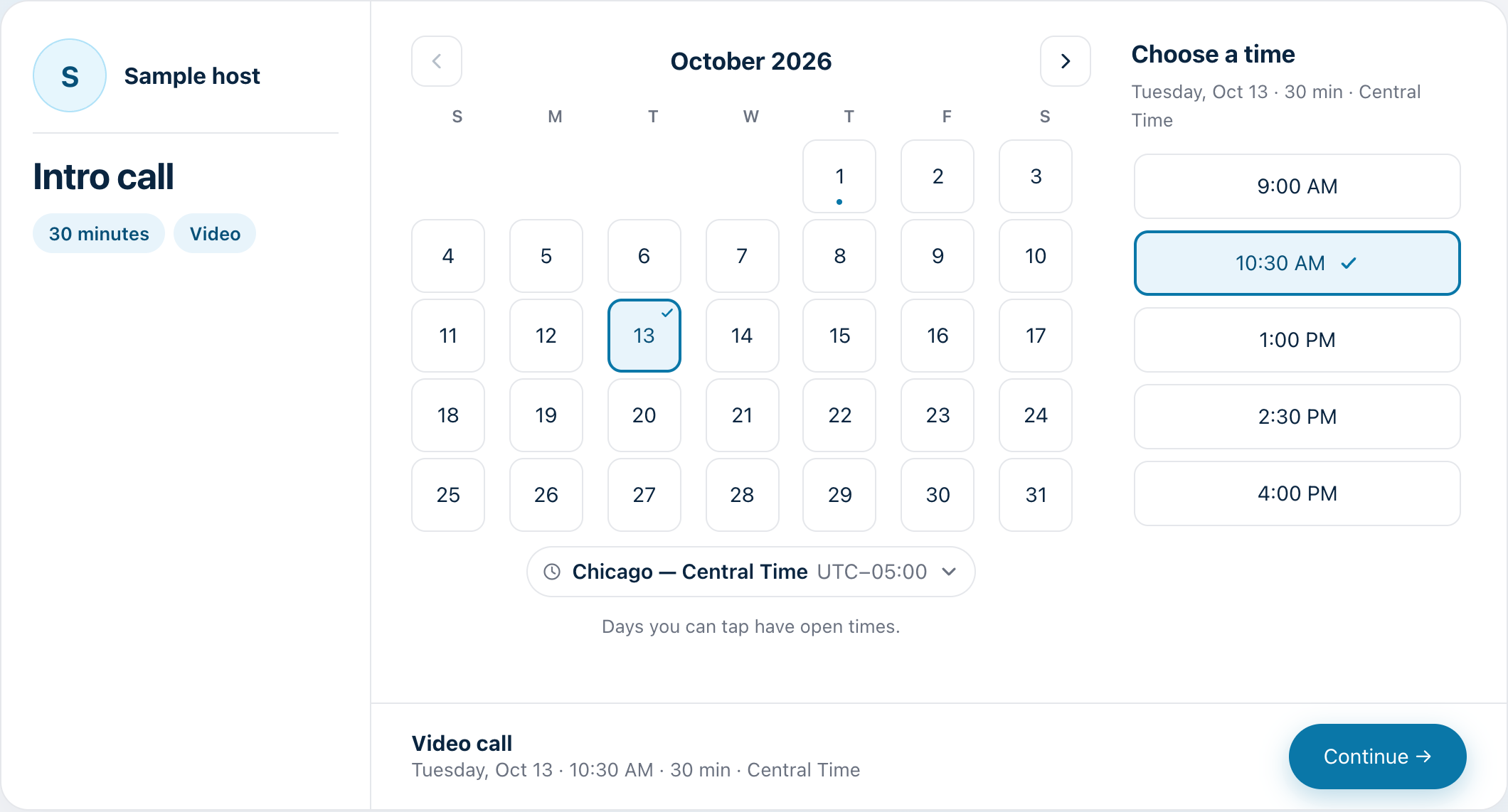
One click opens that time.
Each time is a link. When a guest clicks one, your booking page opens with that time already chosen, and they confirm.
- Guests do not need an account to book
Availability is checked again when the guest books, so a time that was taken in the meantime is not double-booked.
Three steps. That’s it.
Pick a meeting type.
Choose the kind of meeting you are offering.
Choose the times.
Tick the open times you want to offer.
Paste it into an email.
Each time opens your booking page on that time.