
Features / Calendar connections
Every calendar.
One schedule.
Connect up to 10 Google Calendar or Microsoft Outlook accounts. MyAppointment reads your availability from all of them and adds new bookings where you choose.
Start free. No credit card required.
Already have an account? Sign in
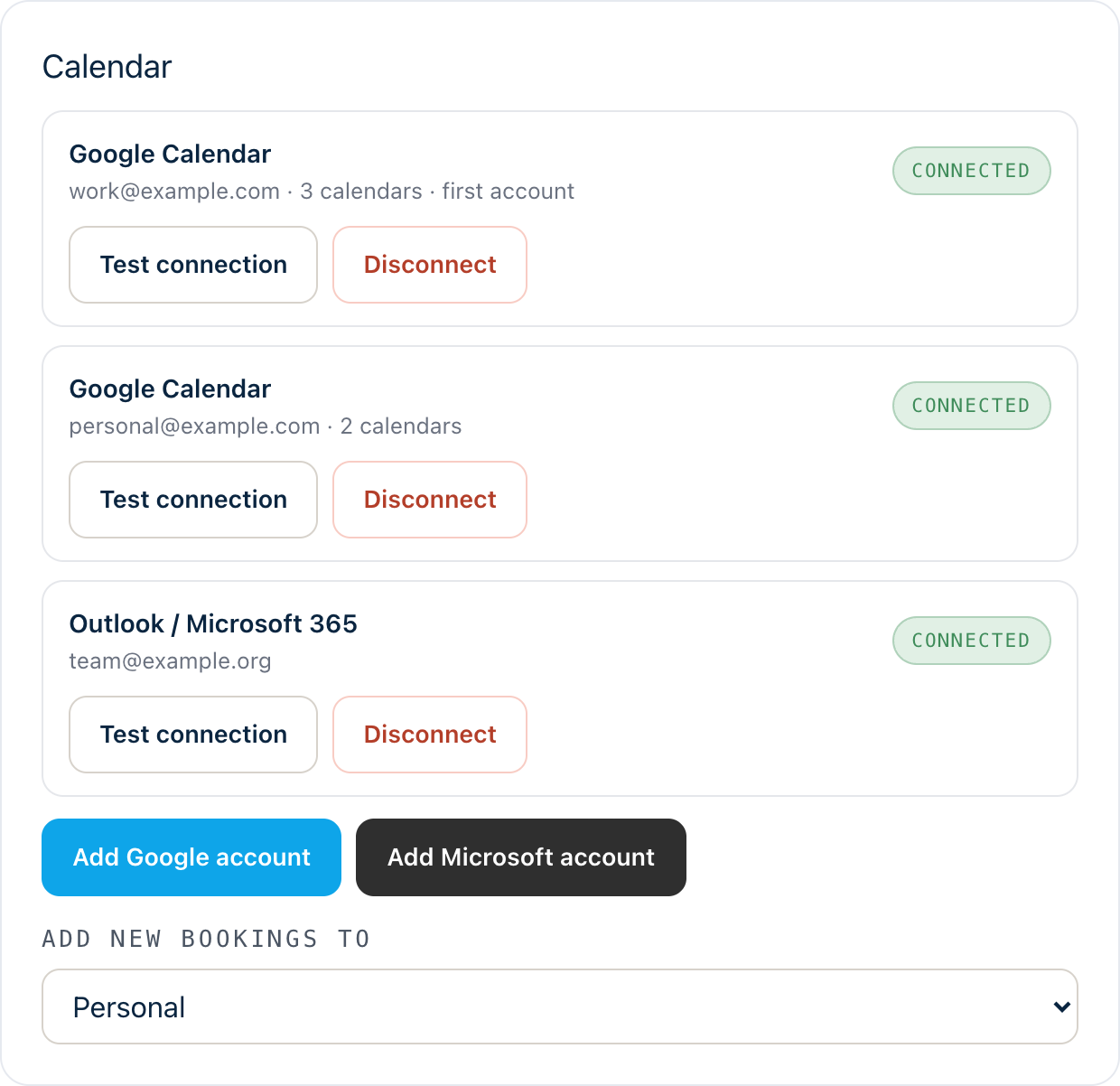
Settings, with sample accounts.
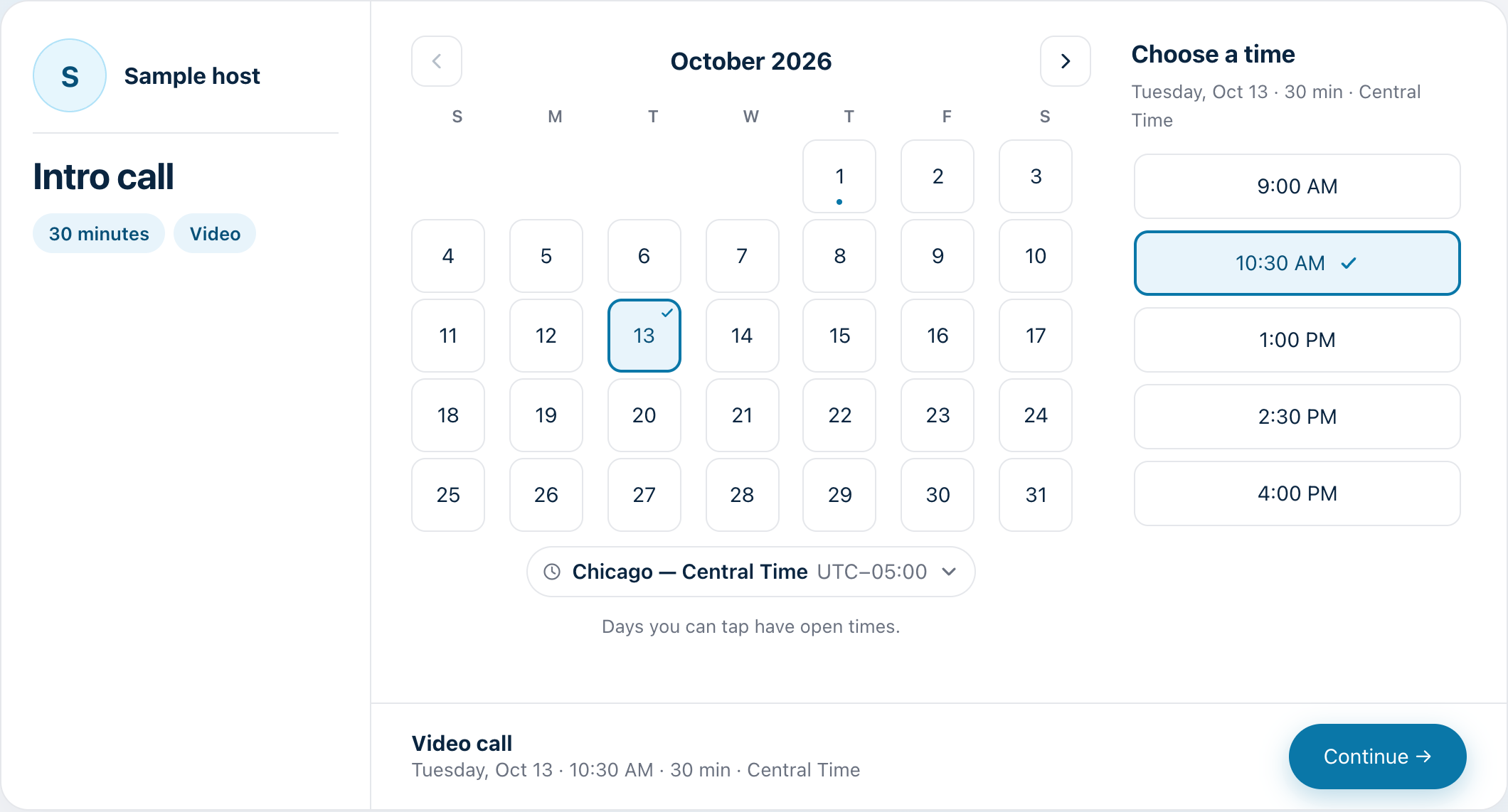
Guests only see times you are free.
MyAppointment checks the calendars you choose on every connected account, so a guest is only offered a time when you are free.
- Google Calendar and Microsoft Outlook
- Connect up to 10 accounts
- With Google, every calendar in each account can count as busy, and you choose which ones
- With Microsoft Outlook, your calendar is checked for busy times
Availability is checked again when a guest confirms.
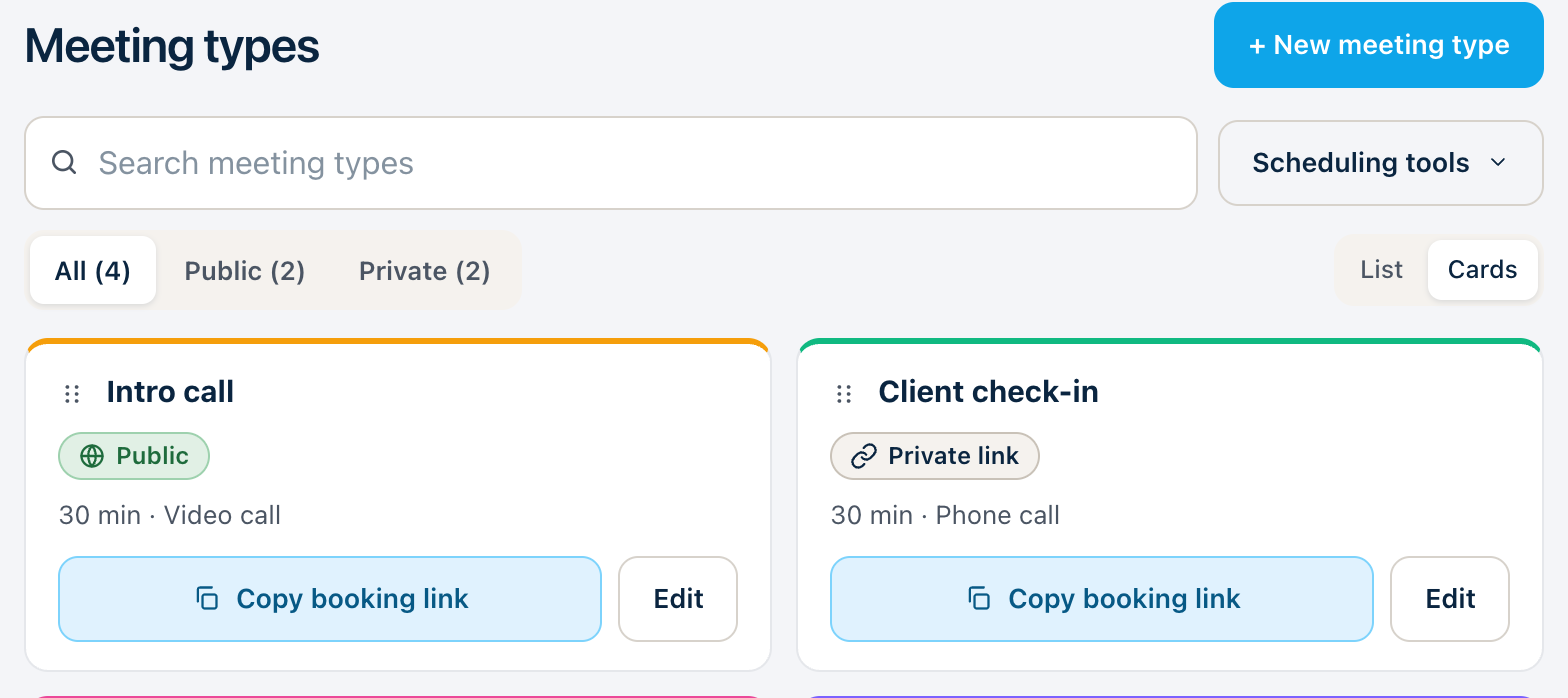
Add each booking to the right calendar.
Choose the account that new bookings are added to for each meeting type, or set one default for all of them. With Google, you can also choose the calendar inside the account.
- A different account for each meeting type
- One default for every type that does not choose
- Change it any time in Settings
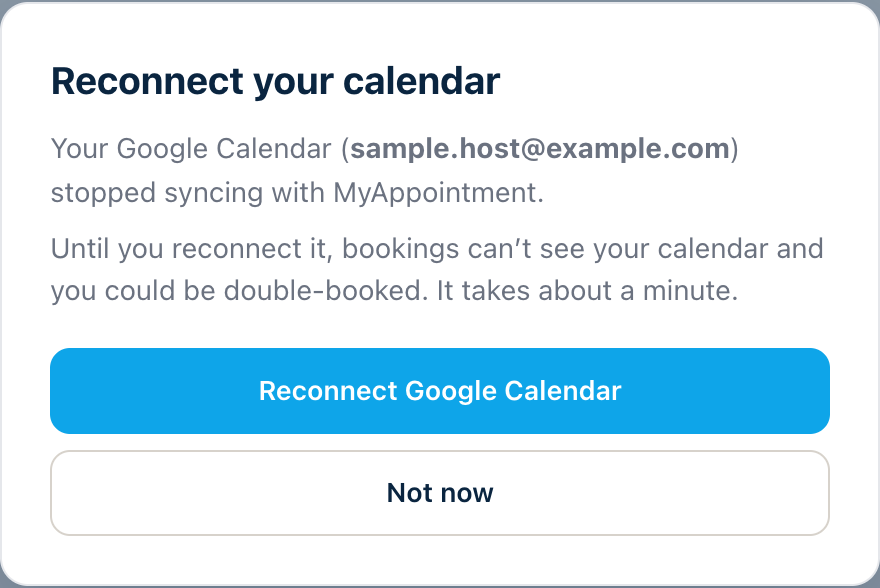
Know when an account needs attention.
If a calendar stops syncing, your dashboard shows a notice that names the account, with a Reconnect button.
- Reconnect in a click, with the account you already use
- Add or remove accounts in Settings, one at a time
While an account needs to reconnect, guests see no new times until you do. If you disconnect your last calendar, your meeting types are turned off until you reconnect, then restored to how they were.
Three steps. That’s it.
Connect an account.
Sign in to the Google or Microsoft account you want to add.
Choose your calendars.
With Google, pick the calendars that count as busy.
Pick where bookings go.
Set an account for each meeting type, or one default.