
Features / Extra booking pages
Multiple businesses. Different roles.
One place to manage your time.
Give every business or professional role its own booking page, with its own name, photo or logo, meeting types, availability and calendar destination.
Start free. No credit card required.
Already have an account? Sign in
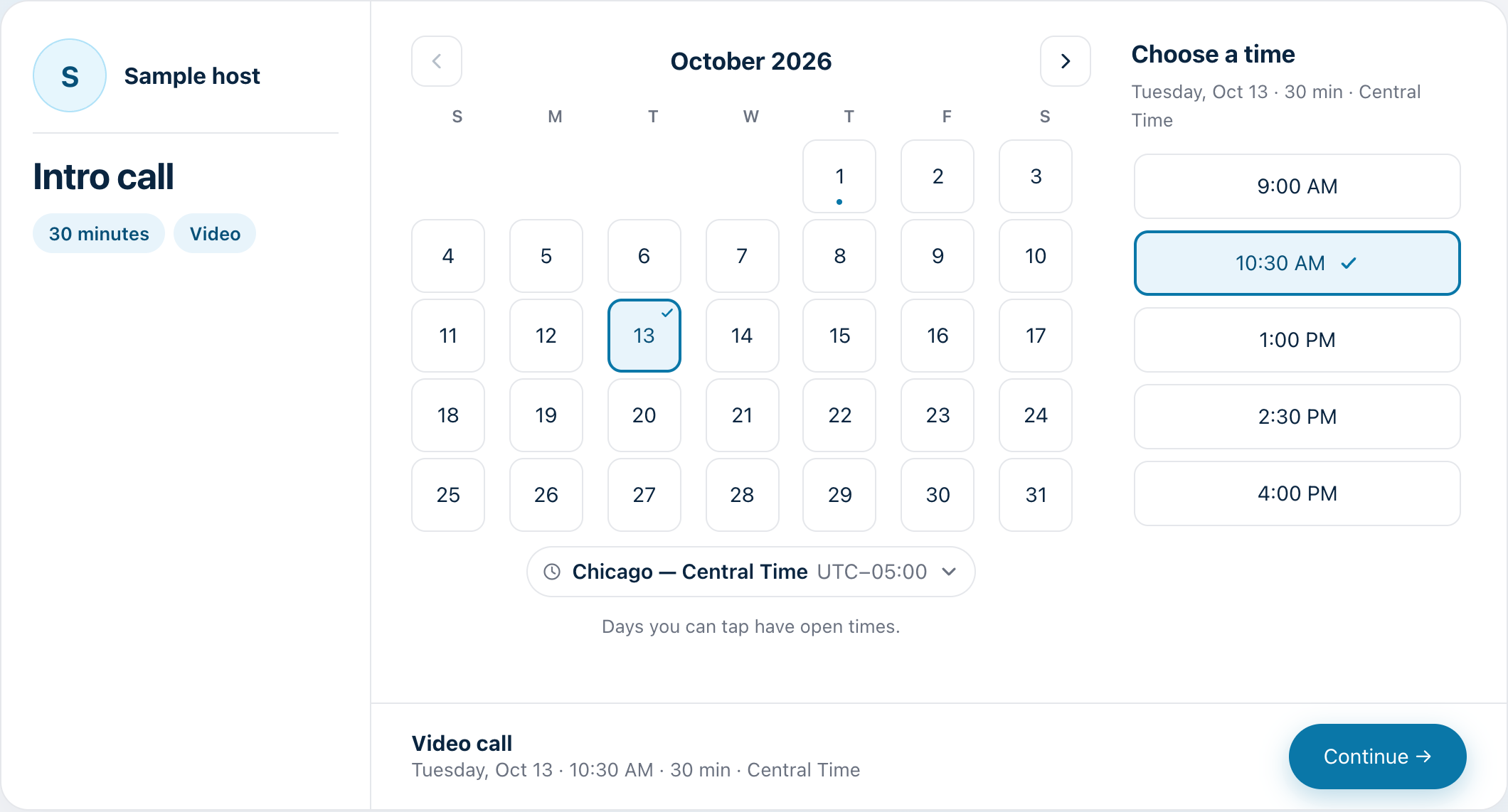
One person, three booking pages. Sample names, hours and calendars.
Your name, your colour, your branding.
Give each page its own name, title and headline, choose a colour for it, and add a headshot or logo you have the right to use. Guests see your branding, with a soft tint of your colour behind the booking page.
- A link of its own, such as myappointment.ai/your-page
- Choose a colour for each page from six colours
- Guests see Booking with your name and the page name
- A contact email for the page is shown, so guests know who to reach
Add only a picture you have the right to use.
Different roles. The same schedule.
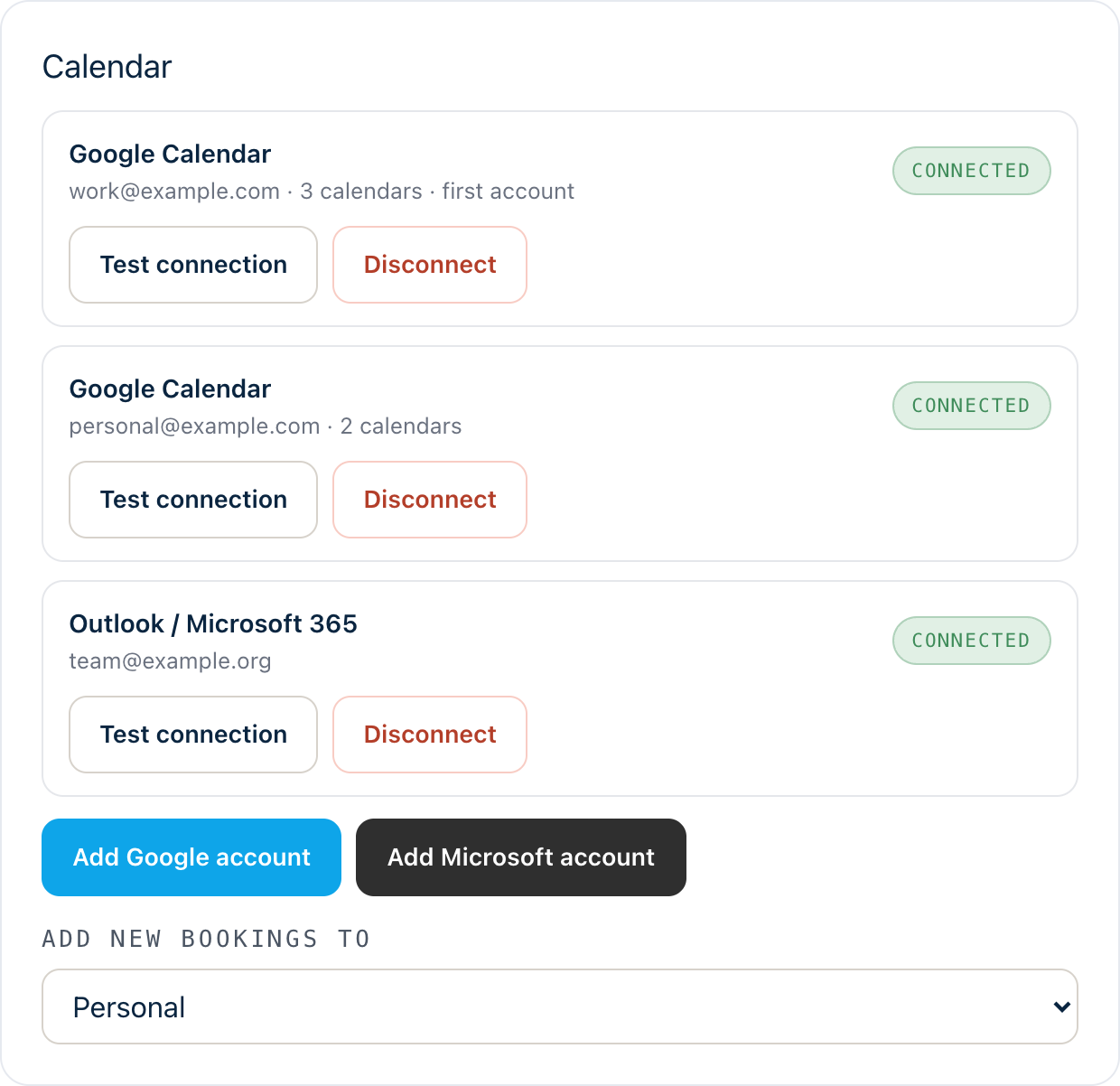
Connect up to 10 calendars to read availability and write appointments. Choose which calendars block busy times for each page, so your different roles work around the same schedule.
- Each page adds its bookings to the calendar you choose for it
- Times that are already busy on the calendars you select are not offered
One account. Your main booking page, plus up to five additional pages.
Different meeting types, hours and calendars.
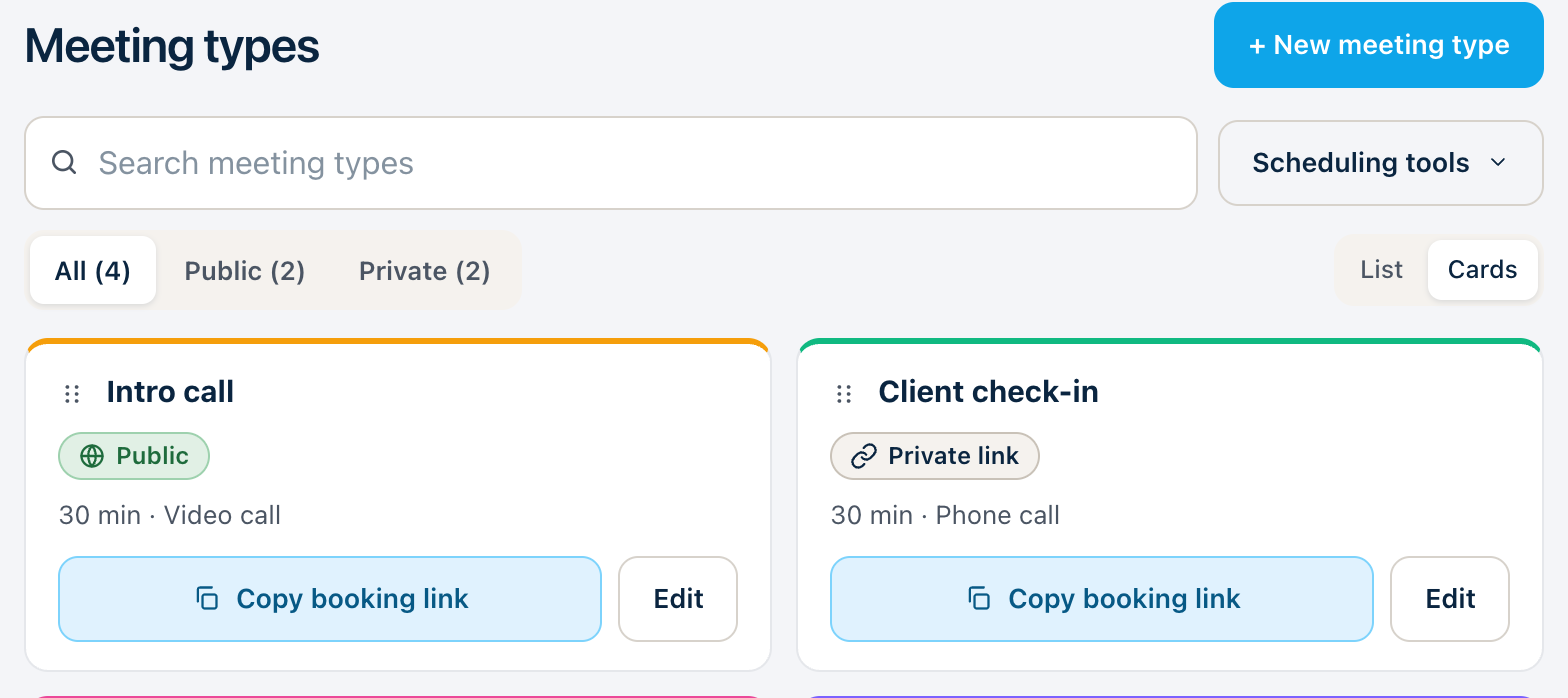
Each extra page has its own meeting types and weekly hours. Choose which calendar receives its bookings, and which of your connected calendars keep its times free.
- Set open hours for each day of the week, with up to three open periods a day
- Each page has its own meeting types
Nothing is public until you publish.
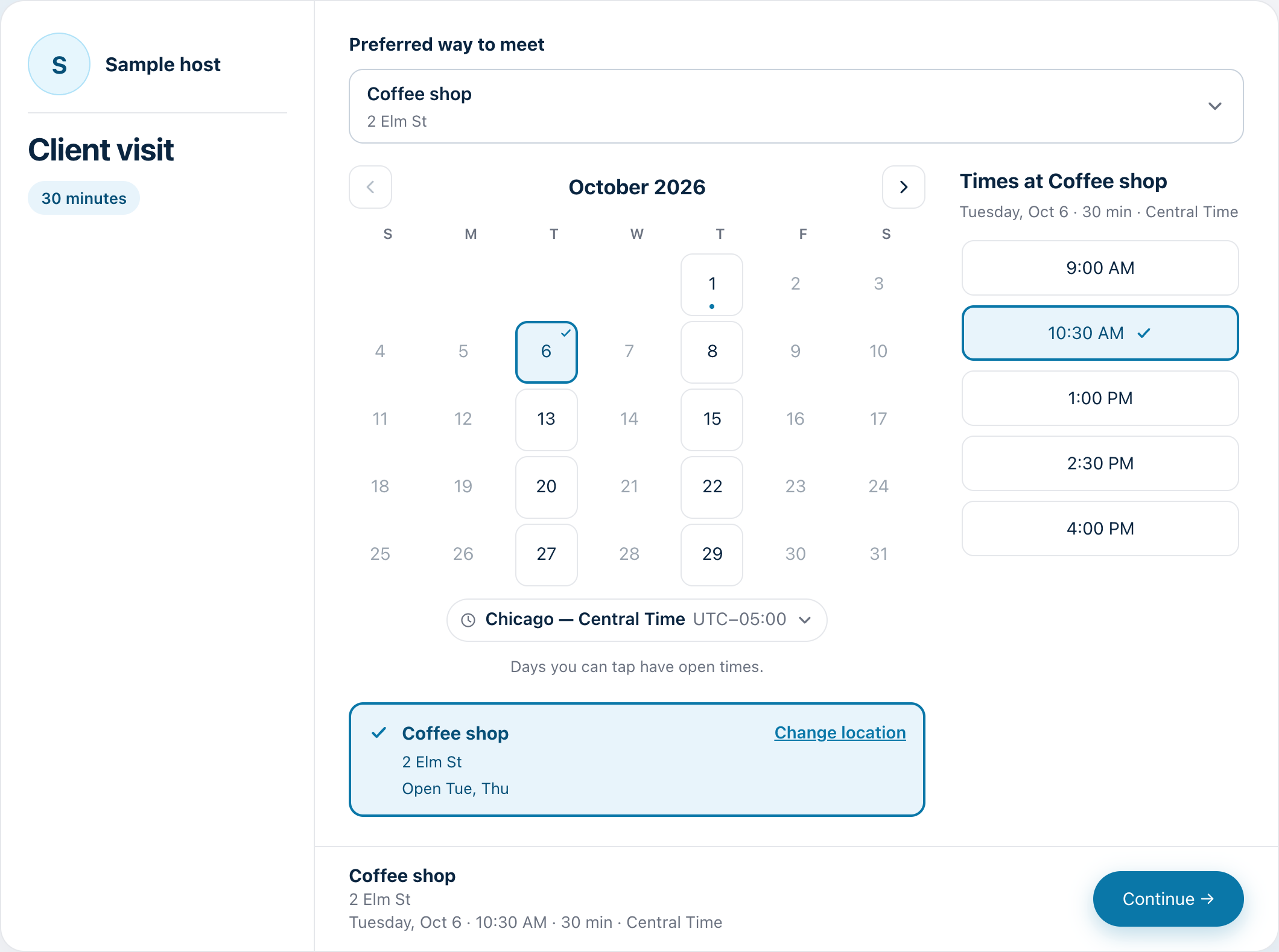
A new page is a draft. Publish it when it is ready, and unpublish it any time to take it off the web. Bookings that are already made are not affected.
- Change a page’s name, title or picture while it is a draft
- Change the contact email while the page is live
- You can have up to five extra pages, besides your main booking page
Your main booking page is not changed by anything here.
Three steps. That’s it.
Create the page.
Choose its name, its link and a contact email.
Add what people can book.
Add a meeting type, set your hours and choose the calendar it uses.
Publish it.
Share the link. Unpublish it any time.